> For the complete documentation index, see [llms.txt](https://docs.oortech.com/oort/llms.txt). Markdown versions of documentation pages are available by appending `.md` to page URLs; this page is available as [Markdown](https://docs.oortech.com/oort/oort-storage/getting-started/user-guide/upload-an-object.md).
# Upload an Object
Start Storing!
Once you've created a bucket in OORT Storage, you're all set to upload your files. Whether it's a text file, a photo, a video, a website directory, or any other kind of file, you can easily upload it as an object in your bucket. With support for a wide range of file types and sizes, you can store and manage your data in a secure and scalable environment. Our platform is designed to make it easy for you to upload and manage your objects, so you can focus on what matters most - your business.
{% hint style="info" %}
If you don’t have a bucket yet, please see [Create a bucket](/oort/oort-storage/getting-started/user-guide/create-a-bucket.md)**.**
{% endhint %}
## **Step 1: Select a bucket**
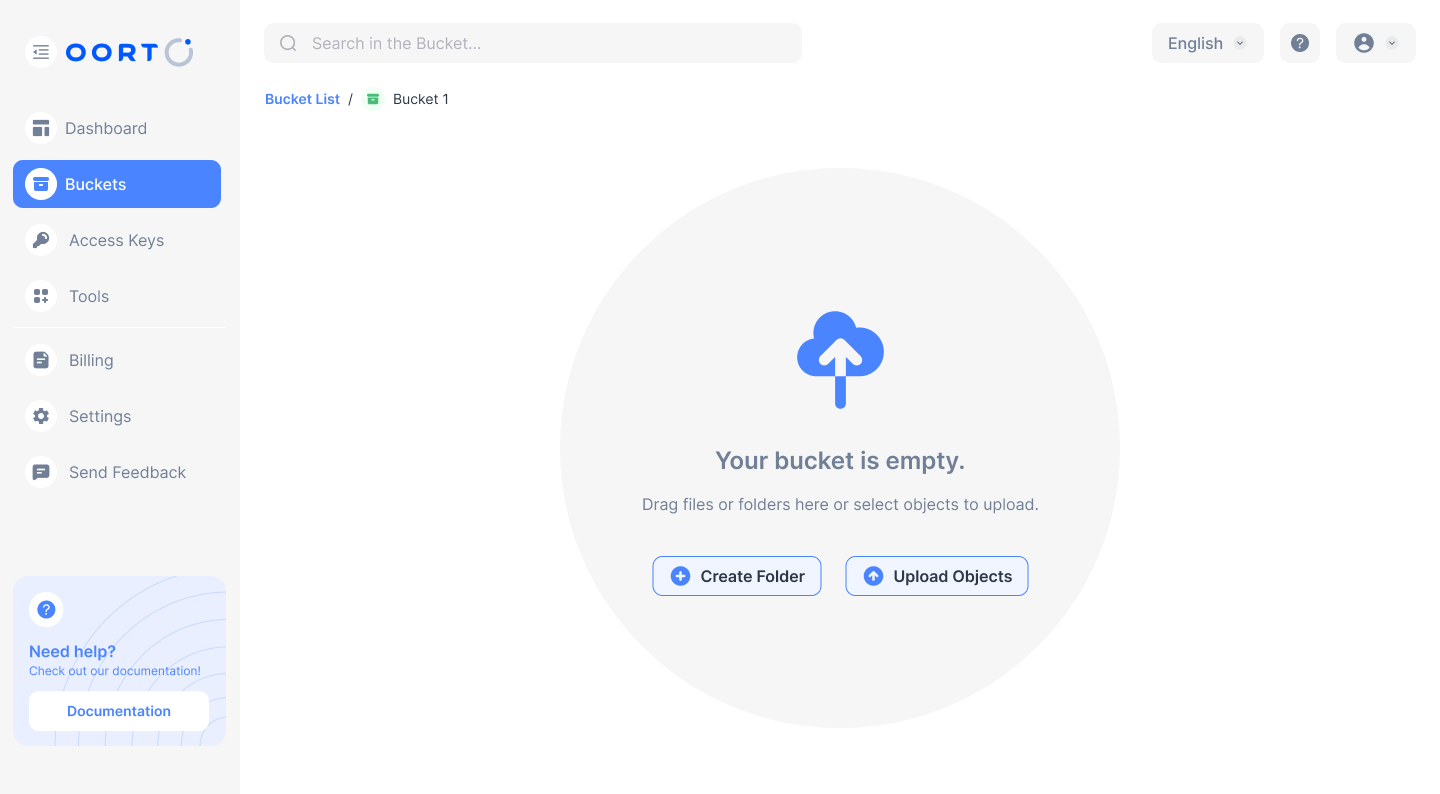
Open a bucket of choice in **`OORT Storage console`** -> **`Buckets`**.
## Step 2: Upload Your File
Uploading objects to your OORT Storage bucket is a simple process. Click on the "Upload Objects" button and select the files you want to upload from your local device. You can also drag and drop the file directly into the OORT Storage window. After that, simply click the "Upload" button to complete the process.
Depending on the size and number of files you're uploading, it may take some time to complete the upload. Once the upload is complete, your object will be stored securely in your bucket, ready for you to access and manage as needed.
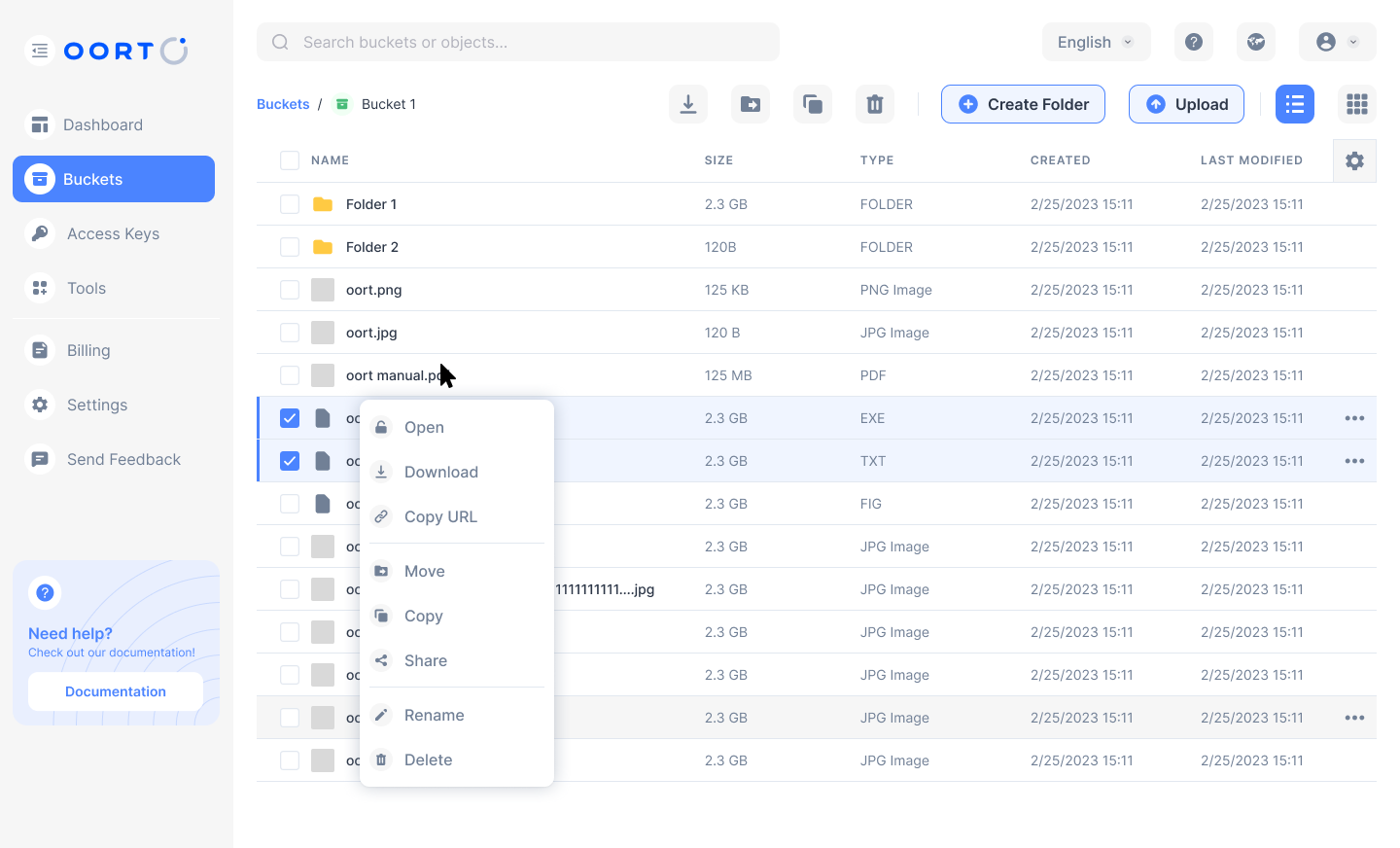
You can view and manage all our objects in the bucket.
## **Download objects**
{% content-ref url="/pages/k8Mrl3opfY4gtKhH54NM" %}
[Download Objects](/oort/oort-storage/manage-storage/work-with-objects/download-objects.md)
{% endcontent-ref %}